GitHub Desktop – Not launching UI – Problem & Fix

Software:
GitHub Desktop 2.4.3 | Windows 10

About 1 or 2 weeks ago GitHub Desktop stopped opening it’s window when lunched.
It would run in the background, you could see it in the Windows Task Manager, but its window would not open.
Looking into this on various web discussions, I found that deleting the folder named app-2.4.3 in its application data solves the problem:
Annotation 2020-05-09 200238
This is the path to GitHub Desktop‘s data:
C:\Users\<YOUR USER>\AppData\Local\GitHubDesktop
After deleting the folder and re-launching GitHub Desktop, I found it generated a new folder with the same name, so I guess settings for the latest update got corrupted, and the software generated new settings..


Related:
UE4 GitHub Setup


Using Color Lookup Tables (CLUTs)

What is this all about?

Color Lookup Tables – CLUTs (also “Color LUTs“) are a method of storing and reusing complex linear color transformations*.
CLUTs have the advantages of being supported by many video and image processing software packages, and also the ability to be calculated in real-time on the GPU, costing very little computing resources.
* More simple, daily use terms can be: “color styles”, or “color corrections”

CLUTs are used in the movie production industry to perform color conversions of images acquired from different sources for monitoring and editing purposes, and also for testing, applying and sharing different creative color styles across different departments, and stages of the production.
Examples of common CLUT file formats are *.3DL and *.CUBE

Why is this called a “3D” or “Cube” Lookup Table?

The reason CLUTs are referred to as “3D” color lookup tables or “Cube LUT” is that they store the effect of color operations as linear transformations of a 3D cubic space.
To understand this we have to imagine RGB color encoding as a 3D space with the R, G and B values of each color being coordinates in this cubic color space.
This means that the color correction operations we perform to create a color style, like adding contrast, saturation, warming the hues etc. are all defined as a function that for every color coordinate in the RGB color cube space defines the new coordinate where the corrected or stylized color is found.
The term Lookup table means that the new color values don’t have to be calculated every time because they have been pre-calculated and stored in a table of values.
3D CLUTs are often processed and stored as 3D Cubic textures like this example generated with Blackmagic Fusion of a 32 x 32 x 32 value CLUT.
Imagine the little 32 x 32 square patches all stacked one upon the other, that would create a 32 x 32 x 32 RGB color cube, with which color transformations can be stored by simply applying them on this texture:Cube0000

Working with CLUTs:

In this post we’ll go trough the process of creating and using a CLUT in some popular creative software packages.
* Note that there are many other software packages that support creation and usage of CLUTs, the process should be similar.

Steps shown in the following software:
Adobe Photoshop 2020
Adobe After Effects 2020
Adobe Premiere 2020
Blackmagic Design Fusion 9

In this example our source image with which the CLUT will be designed is an interior scene modeled with Blender 2.82 and rendered with Cycles Render Engine with “Filmic” tone-mapping applied, saved as a PNG file.
* I usually save Linear unclamped 32bit float EXR files as the raw output from render engines, because this is the format that provides the most freedom to manipulate and process rendered images and animation, but from my experience CLUTS don’t work well on linear unclamped color, for that reason I usually apply them at a later stage of the image development (usually after applying tone-mapping to the image).
This is why I saved the file directly as a tone-mapped PNG for this example.

A.Test_Image

Creating a CLUT in Adobe Photoshop:

For this example, a greenish-contrasty-desaturated color style is created in Photoshop by applying color adjustment layers to the image.
In this case Color Balance, Vibrance, and Curves.
* You can use different numbers and combinations of color adjustments

B.Photoshop_Grade

The new Color Style is now exported to CLUT files:

C.Photoshop_Export_CLUTS

In the Export Color Lookup Tables dialog allows naming the CLUT, adding a description, setting a quality for the color transform it will define, and selecting the wanted CLUT file formats that will be written.
After clicking OK the CLUT files will be saved in a chosen location.C1.Photoshop_Export_CLUTS

Note:
Saving the CLUT in the Presets\3DLUTs folder (found in the Adobe Photoshop installation folder) will allow reusing the CLUT as a preset look available by drop-down selection without having to locate the file each time.

Applying a CLUT in Adobe Photoshop:

With the image later selected, add a Color Lookup adjustment layer:

D.Photoshop_Lut_Adjustment

In the Color Lookup adjustment properties, open the 3DLUT File drop-down, choose Load 3D LUT, and locate the CLUT file you saved:E.Photoshop_Lut_Load

The original image now has the same color style we created earlier, but this time it’s applied by only a single Color Lookup adjustment layer:

F.Photoshop_Lut_Correction

An example of the same CLUT applied to a different image:

F1.Photoshop_Lut_Correction_B

Applying a CLUT in Adobe After Effects:

Add a Util > Apply Color LUT effect to a layer,
In the Effect Controls window, click Choose LUT and locate the wanted CLUT file:

G.AE_Apply_CLUT

Applying a CLUT in Adobe Premiere:

  1. Select the image/video clip in the timeline.
  2. Switch to the Color UI tab to get access to the Lumetri Color controls on the right.
  3. In the Creative section of the Lumetri Color controls, open the Look dropdown, choose Browse and locate the wanted CLUT file.

I.Premiere_Apply_CLUT

I.Premiere_Apply_CLUT_B

Applying a CLUT in Blackmagic Design Fusion:

Add a LUT >File LUT node to the image source.
In the File LUT properties, click the browse button and locate the wanted CLUT file:

H.Fusion_Apply_CLUT

Creating a CLUT in Blackmagic Design Fusion:

* See the numbered nodes in the flow graph below

  1. Source image/video on which the CLUT is designed.
  2. A LUT Cube Creator node, generating default neutral 3D CLUT data in the form of a Color Cube map.
  3. The nodes creating the actual color style (in this case a Color Corrector and Color Curve nodes) are operating on the LUT Cube Creator node’s output.
  4. A LUT Cube Apply node is applying the stylized CLUT data to the image/video for previewing purpose (displayed on the right viewer)
  5. A LUT Cube Analyzer node generates CLUT data from the styled LUT Cube Creator data, and allows saving it to disk as a CLUT file.
    * Choose a location and click Write File to save the CLUT file.

K.Fusion_Create_LUT

Blender – Adding a texture to an Area Light

Software:
Blender 2.82

Adding a texture to an area light can make it produce softer and more detailed highlights and an overall more organic lighting effect.

Note:
Since an Area light in Blender isn’t rendered as an actual mesh object with UV coordinates, it’s texture coordinates are parametric (see below).

Adding a texture to an Area Light:

  1. In the Area Light properties click the Use Nodes button (see image A) to initiate its node graph and allow texturing it.
  2. In the Shader Editor view (with the light selected), drop your texture to the light’s node graph and connect it to the light’s Emission node’s Color input. (see image B)
  3. Create a new Input > Geometry node, and connect it’s Parametric output to the Image Texture’s Vector input. (see image B)

A. Without a texture the Area light produces a hard flat highlight:
a

B. With the vignette texture, the Area light now has a more subtle organic effect:
* The Emission node’s Strength was increased in this case to compensate for the lower light output with the texture.
b
Related posts:

  1. Cycles Area Light pleasent surprise
  2. Cycles Area Light shader visibility

UE4 – Using a Post Process material to create a simple fog effect

Software:
Unreal Engine 4.24

An example of a simple fog effect created using a Post Process material:


The fog material Blueprint:
The method for creating the fog effect is to take distance of the objects from the camera, map it to a value range suitable for color blending 0 – 1, and use that for blending the object’s color with the fog color, so the further away the object, the more it will be colored by the fog.
Start by creating a new material, and follow the details below to create the Blueprint:

Fog_PP_material

  1. The Material Domain is set to Post Process.
    And has its Blendable Location parameter set to Before Tonemapping so it will be applied on the raw render.
    Annotation 2020-05-04 011312
  2. A SceneTexture node with its Scene Texture Id parameter set to PostProcessInput0 serves as the input of the view’s original rendered pixel colors:
    Annotation 2020-05-04 011050
  3. A Lerp (LinearInterpolate) node calculates the blending of the view’s original pixel colors with the Fog color to create the fog effect.
  4. A SceneTexture node with its Scene Texture Id parameter set to SceneDepth serves as the input of depth of each pixel (distance from camera):
    Annotation 2020-05-04 012256
  5. A ComponentMask node set to the R channel allows using the depth data as a single float value instead of a Vector4:
    Annotation 2020-05-04 012603
  6. A Clamp node is used to clamp (limit) the depth value to the Fog’s maximum depth value (see below)
  7. A RemapValueRange maps the distance value to a fog density value that will be used as the Lerp (3) alpha parameter.
    Simply put, the further the object, the more the original color will be blended with the fog color.
  8. A Power node (raises the fog blend factor by an exponent) make the fog blending non-linear, that is beginning gently for closer objects and than increasing more drastically as the distance grows (provided that the exponent value is above 1)
  9. A Constant Vector4 serves as an input for the fog color.
    * Note that having this input be a Vector4 and not a Vector3 allows it to be interpolated with the PostProcessInput0 data, otherwise a ComponentMask (RGB) node would have been necessary to convert the PostProcessInput0 to a Vector3.
  10. a float constant serves as an input for the fog’s minimal distance (from camera)
  11. a float constant serves as an input for the fog’s maximal distance (from camera)
    *  Note that it’s connected both to the Clamp node and to the RemapValueRange node.
  12. a float constant serves as an input for the fog’s minimal opacity (blend amount)
  13. a float constant serves as an input for the fog’s maximal opacity (blend amount)
  14. a float constant serves as an input for the fog’s blend exponent.


Applying the Post Process material to the level:

Fog_2

  1. Select the PostProcessVolume actor in the World Outliner window.
    * Create a PostProcessVolume actor if necessary.
  2. In the Details panel, under Rendering Features > Post Process materials,
    Add a new item to the array, in the new item’s value choose Asset Reference,
    And then select your fog material:
    Annotation 2020-05-04 015354
    Annotation 2020-05-04 015831


Related:

  1. Material Functions
  2. Blending materials
  3. Blending materials using texture paint

3ds max – Using a GradientRamp procedural texture in Mapped mode

Software:
3ds max 2020

Using the GradientRamp procedural texture map in Mapped mode can very useful for creating procedural material effects.
The Idea is that the lightness value from a different map will determine what part of the GradientRamp is sampled.

In this example the GradientRamp uses values produced by a procedural Falloff map set to Perpendicular-Parallel mode, as its coordinates source, to create richly colored metal that changes its Hue depending on View/Incident angle:

Annotation 2020-05-02 184426

In this example the GradientRamp uses values produced by a procedural Noise map as its coordinates source to create an irregular color effect:

Annotation 2020-05-02 184849

Note:
The examples here were rendered using V-Ray Next for 3ds max, but this technique could also be used with other rendering engines.


Related:

  1. 3ds max Island/seashore tip

Blender – Basic time-dependent animation driver examples

Software:
Blender 2.82

To setup a time-dependent Driver in Blender, simply use the built-in frame variable.
In this example the expression:

sin(frame)

Set as a Z axis location driver for the cube causes it to oscillate up and down:

frame_driver

Changing the expression to:

sin( frame * 0.1 ) * 2

Causes the motion to be twice as high and 10X slower:

frame_driver2


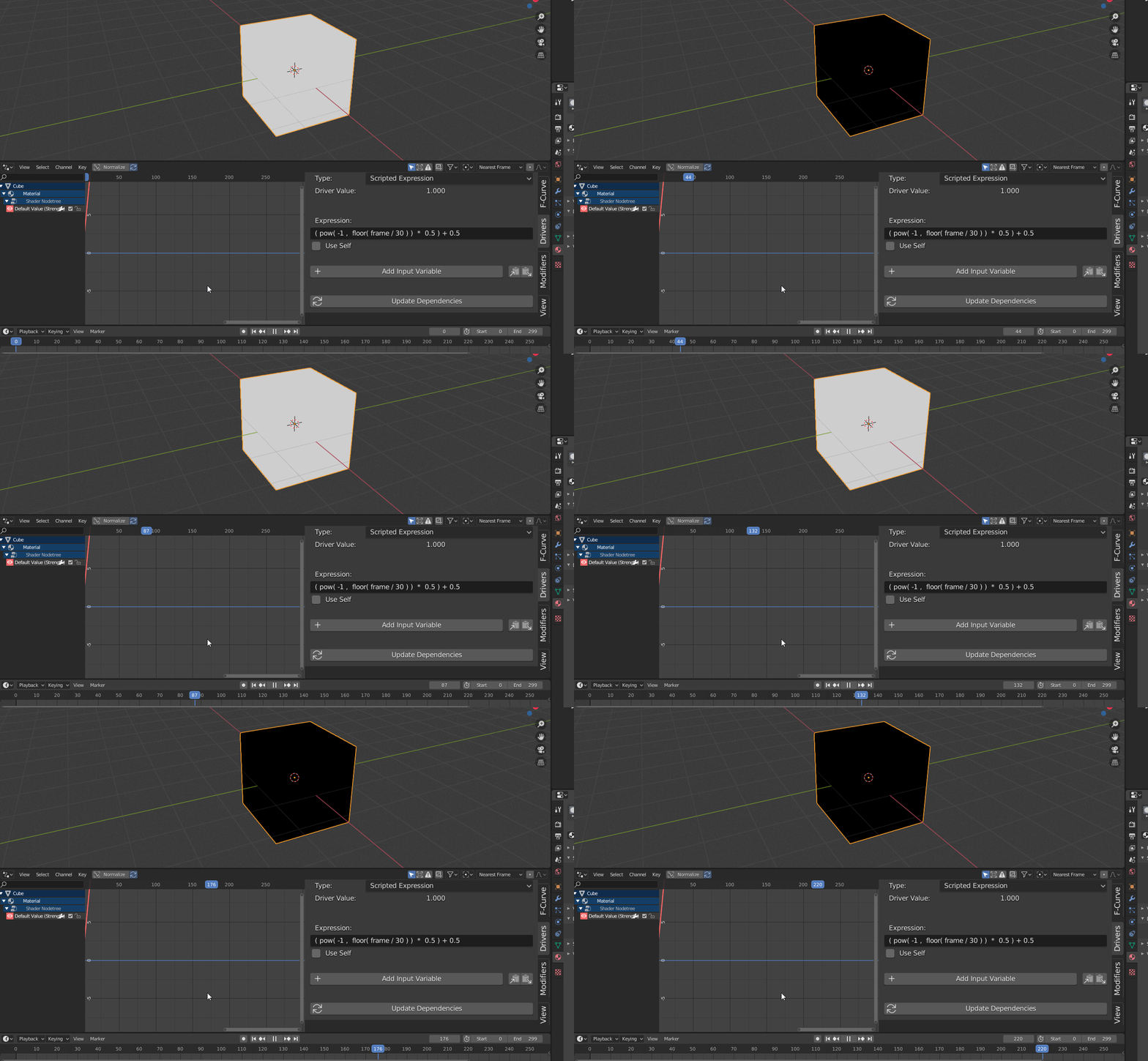
In this example, the expression:

( pow( -1 ,  floor( frame / 30 ) )  *  0.5 ) + 0.5

Set to the cube’s Emission shader’s Strength attribute causes it to alternate between values of 0 and 1 every second (30 frames in this case):

frame_driver3


Related:
Blender – Create constraints quickly

Python for Blender – Batch renaming objects

Software:
Blender 2.8 | Python 3.7

Some useful short Python snippets for batch re-naming objects in Blender:

  1. Remove last 4 characters from selected object names:
    import bpy
    objects = bpy.context.selected_objects
    for o in objects:
        o.name = o.name[:-4]

    Annotation 2020-04-23 202028

  2. Rename all selected objects to a set base name followed by a 3 digit numeric suffix:
    import bpy
    objects = bpy.context.selected_objects
    for (i,o) in enumerate(objects):
         o.name = "some_base_name_{:03d}".format(i)

    Annotation 2020-04-23 202718

  3. Prefix all selected objects name with their Blender data type like renaming “SomeModel” to “MESH_SomeModel” or for example:
    import bpy
    objects = bpy.context.selected_objects
    for (i,o) in enumerate(objects):
         o.name = "{}_{}".format(o.type,o.name)

    Annotation 2020-04-23 203345


* note that when copying and pasting a script from this example, the indentation may not be pasted correctly.

Note:
Blender 2.8 has a robust batch renaming utility that is invoked by pressing Ctrl + F2 so we don’t have to write scripts to do batch renaming of objects:

Annotation 2020-04-24 174503


Related:

Python for Blender – Accessing Mesh Triangles

UE4 – Change the size of the UI and fonts

Software:
Unreal Engine 4.24

To Change the size of the UI and fonts in the Unreal Editor:

  1. Select:
    Window > Developer Tools > Widget Reflector
    To open the Widget Reflector window
    Annotation 2020-04-23 150847
  2. In the Widget Reflector window, change the Application Scale parameter:
    Annotation 2020-04-23 151022

Unreal Engine 4 + GitHub First Steps

Software:
Unreal Engine 4.24 | Git for Windows | Git LFS | GitHub Desktop

What is this all about?
A game development project is in fact a software development project, and therefore requires Source Control (aka “Version Control”).
A Source Control solution is a software system that registers and stores states of the code as it develops, and allows the developers to manage the changes, compare different versions of the project, revert to previous versions and much more.
There are more than one popular Source Control solutions in the market.
This article is written specifically about setting-up Source Control for an Unreal Engine 4 project using Git Source Control software, focusing on working with the GitHub desktop client app for Windows.

Disclaimer:
Although I’ve already had some experience using Git Source Control,
This is the first time I’ve had to set it up for myself by myself from scratch specifically for UE4 (using Git LFS), So this article can’t be regarded as an authoritative guide to the subject.
This is simply an informative record of the steps taken, problems encountered, notes, etc.
Hopefully, this post will be helpful, and if you find mistakes, inaccuracies, or that I forgot some steps, I’ll be grateful if you’ll post a comment.

General Preparations:

  1. Create a GitHub account:
    github.com
    Note:
    The installations of the Git client tools in the next steps will require your GitHub login credentials (I don’t remember exactly which and when, because I didn’t document every step being busy getting things to work…)
  2. Install Git for Windows:
    gitforwindows.org
    Note:
    With the installation of Git for windows we not only get the Git Client software, responsible for performing all the Source Control operations, but also Git Bash which is (in my opinion) a very convenient command-line console specialized for Git operations.
  3. Install Git LFS:
    git-lfs.github.com
    Note:
    The Git LFS client is responsible for compressing and uploading the large binary files, which is to simply say, the files that are not ascii text format like software source code files / scripts / meta-data / settings etc., but typically media files like 3D models, graphic files, audio and the like.
    We generally don’t have to do anything directly with the Git LFS client, The Git Client automatically runs it, and it operates according settings written in text files placed at the Git repository root folder (more detail on this below).
  4. Optional: Install GitHub Desktop:
    desktop.github.com
    Note:
    This is an optional desktop Git client with a GUI for performing git operations.
    You can do everything without it, but its convenient, and was specifically helpful for me with setting up a UE4 repository, because it provides preset Git LFS settings (more on that below).

Steps for setting up a UE4 project GitHub repository:

Note:
I’m using GitHub Desktop to initialize the repository with UE4 Git LFS settings and also
  1. Create an Unreal Engine 4 project (if you haven’t already created one..)
    Note:
    If you want the 3D assets, texture files, etc. to be tracked and version controlled as an integral part of the UE4 project, add a “Raw_Content” or “Raw_Assets” folder inside the UE4 project folder to store them in their editable formats prior to being imported to the Unreal project.
    Uploading such large binary files to git requires using Git LFS as described below.
  2. Important: Backup a full copy of the UE4 project somewhere safe at least for the first steps.
    Note:
    I Actually needed to use this backup to save my own project (see below)
  3. In GitHub Desktop, choose File > New repository to open the Create a new repository dialog.Annotation 2020-04-18 212957
  4. A. In the Name field Type the exact name of the UE4 project (The name of it’s root folder).
    B. Write a short description of your project in the Description field.
    C. Set the Local path to the folder containing the your project folder, not the project folder itself.
    D. In the Git ignore drop-down select the UnrealEngine Option.
    E. Press the Create repository button.Annotation 2020-04-18 213139
    Note:
    Stage D is very important, it creates an initial .gitignore file with specific settings for a UE4 project, namely what files and folders to track and upload. a UE4 project generates massive files that are needed to run the game but are redundant, because they can always be generated again. these files shouldn’t be tracked or uploaded, and without proper settings in the .gitignore file, you wont be able to push (upload) the repository to the remote server.
    This is one of GitHub Desktop’s advantages, that it offers these Git Ignore presets.
    Another Note:
    We could “Publish” the repository to to GitHub server at this stage (see explanation below).
    But the reason I don’t recommend performing this action at this stage is that for a UE4 project to be successfully uploaded (“pushed”) to the remote server, we must have proper Git LFS settings, which we haven’t finished to set up prior to that.
    Blender Note:
    If you work with Blender and it’s setup to save the *.blend1 backup files, it’s recommended to add this type of file to the Git Ignore file like this:Annotation 2020-05-29 140520

Setting up Git LFS for the new repository:

Note:
Git LFS (Large File Storage) is necessary for tracking and uploading large binary files like 3D models, texture files, audio, etc.
Depending on the size of your project, you may need to upgrade the LFS storage capacity of your GitHub account.

  1. Open Git Bash for the new repository by right clicking its root folder background and choosing Git Bash Here:Annotation 2020-04-19 002454
  2. In the Git Bash console, write the command:
    git lfs installA
    This command sets-up Git LFS for the repository:B
  3. For every type of binary file that you want to be tracked and uploaded by Git LFS,
    Type the command:
    git lfs track *.<file type extension>
    To add this file type to the list of files tracked by Git LFS:
    * This list is stored in the text file named “.gitattributes” that was automatically created in the project folder when the repository was initiated.C
    Note:
    You can at any time type the command:
    git lfs track
    to display a list of the file types being tracked.
    You can open the .gitattributes file and see the list.
    This is an example of the LFS track list for one of my UE4 projects:E

Publishing the new repository to the GitHub server:

Note:
This step includes initiating the remote repository on the GitHub server, setting it as the local repository’s origin, verifying it and pushing (uploading) the current state of the local repository to the remote one.
GitHub desktop let’s us perform all these actions at ones with it’s Publish repository button.
If you wish to know how to perform these operations without using GitHub desktop, this article gives detailed explanations.

Steps for publishing the new repository with GitHub desktop:

  1. Commit the recent changes (Git LFS settings we just set):
    In Github desktop (assuming the repository we just initiated is selected in the Current repository drop-down), in the Changes pane, observe the list of latest changes to the repository. it should include the changed .gitattributes file, and maybe more changes.
    In the Description field, type a short description of the changes like “Updated Git LFS settings” for example, and press the Commit to master button to commit the updated state of the repository to the source control history.Annotation 2020-04-19 012328
  2. Publish the repository:
    The next actions will both initiate a remote repository on the GitHub server, set it up as the origin of the local repository, and push (upload) the the local repository to the server.
    In GitHub desktop, make sure the new repository is selected in the Current repository drop-down and press the Publish repository button to open the Publish repository dialog.Annotation 2020-04-19 012509
  3. In the Publish repository dialog, name the remote repository (AFAIK it doesn’t have to be the exact name as your local repository’s root folder’s name, but it’s convenient if it is..), Type a description for the project, check weather it should be public or private and press the Publish repository button.
    The repository’s remote origin will now be initiated, and the local repository’s state and commit history will be pushed (uploaded) to the server to update the origin.
    * Depending on the size of your local repository, this may take some time…Annotation 2020-04-19 012541
  4. Once the process of publishing the new repository has finished, we can browse the new remote repository on GitHub:Annotation 2020-04-19 013620

Regularly committing and pushing updated state of the project/repository:

Note:
You might want to commit an updated state of your project to source control at the end of a day’s work to back it up, or when some specific development goal has been reached, or prior to some significant change, or maybe in-order for other team members/users to be able to get the latest version of the project. there could be many reasons for committing the current state of the project to Git, but the most important reason is that you want to be able to restore the current state of the project In the future.
Steps for committing the updated state of the repository to Git and pushing it to the remote server:
  1. Commit the changes to Git:
  2. In Github desktop select the repository of your project in the Current repository drop-down, observe the list of latest changes to the repository in the Changes pane, where you can highlight a changed file and see on the right the actual change in code it represents. un-check changes you don’t want to commit.
    In the Description field, type a short description of update, and press the Commit to master button to commit the updated state of the repository to the source control history.Annotation 2020-04-20 232346
  3. After the latest changes have been committed, you’l see the new committed state appear in the History pane, with an upwards arrow icon indicating it hasn’t been pushed to the server yet.
    Highlight the top committed state and press the Push origin button to update the remote repository on the GitHub server.
    Note:
    When the repository wasn’t yet initiated on the remote server,
    The same button that now has the title Push origin had the title Publish repository.Annotation 2020-04-20 232419
  4. While committing changes to source control for version management and backup is the basic usage of Git, there are many more source control operations that can be performed, like reverting to past commits (states) of the repository, opening new branches for to manage different version of the project, merging branches etc. to name just a few examples. these operations are beyond the scope of this article, and I strongly recommend to get to know them and more.

Unreal Editor Git Plugin:

Annotation 2020-04-21 222458
There is a free, open source Git client plugin for the Unreal Editor developed by Sébastien Rombauts, that ships (at beta stage) included with UE4 4.24, and has many useful features integrated into the Unreal Editor like initiating the project repository with Git LFS setting, committing project states directly from the within the Editor, comparing versions of blueprints and more.
I did some tests with the plugin and found it very convenient, however It doesn’t track changes to the projects C++ code so if your coding you’ll have to commit code changes using a different Git client.
It may be that I just didn’t understand how use the plugin or set it up to track C++ code. I didn’t to find out if it officially doesn’t support this. however, if you work heavily with Blueprints It should be very useful.

Some issues I encountered:

Note:
I don’t know if these issues happen frequently, the reason may very well be me not doing things correctly.
There may be simple solutions to these issues that I don’t know about..
What’s absolutely certain is:
When you’s about to start your first steps with source control on a real project, make sure you back it up first!
Corrupted .uproject file:
After the first time I managed to get all the LFS setting right and successfuly push publish the project, strangely, it wouldn’t launch in the UE Editor, displaying the following message when I tried to double click the project .uproject file:
Untitled-1
And displaying the following message when I tried to launch it through the Epic launcher:
Untitled-2
After some inquiry I found out (to my astonishment) that some how the git operations have replaced the text contents of the .uproject file from this:
Untitled-3
To this:
Untitled-3
Luckily for me I had a full backup of the whole project before starting the setup trial and error process, so I could manually restore the .uproject file to it’s correct state and go on working.
Corruption during download from GitHub:
After a couple of successful commit and push operations with my project, I decided to test how a git repository works as backup, so I tried to download the project folder compressed to a zip file.
The extracted project would launch and compile, but fail to load the main (and only) level it had, displaying this message:
clone
Looking into this, I found that the level umap file is was actually in it’s place but drastically reduced in size:
* The left is the original
clone2
The good news:
I then tried to clone the project via git clone command, and that way it did work as expected.
That’s it!
I hope you’ll find this article useful or even time/error saving.
If you find anything unclear, inaccurate or missing, I’ll be grateful if you leave a comment.
Happy Unrealing and Source Controlling! 🙂

Setting Windows 10 Ransomware protection not to block Adobe Photoshop

Software:
Adobe Photoshop 2020 | Microsoft Windows 10

If you encountered this error message when launching Adobe Photoshop:
“There was a problem with Generator. If the problem persits….”
Annotation 2020-04-18 221206

Chances are it has to do with Windows 10 Ransomware protection blocking it and one of it’s components, and if you continue to working with Photoshop with this problem you’ll find export modules (and maybe other features) not working.

In-order to fix the problem, we have to set Windows Ransomware protection not to block these components:

  1. In the Windows Virus & threat protection settings,
    Click Manage ransomware protection:
    Annotation 2020-04-18 221251
  2. In the Windows Ransomware protection settings,
    Click Allow an app through Controlled folder access:
    Annotation 2020-04-18 221352
  3. In the Allow an app through Controlled folder access settings,
    Click Add an allowed app:
    Annotation 2020-04-18 221420
  4. To avoid having to locate the specific executable files choose Recently blocked apps:
    Annotation 2020-04-18 221444
  5. In the Recently blocked apps select both AdobeGCClient.exe and Photoshop.exe:
    * Click the plus button to add them:
    Annotation 2020-04-18 221639


General note:
You may need to to the same with many other apps.
Every time you get a Windows notification about a process being blocked,
Visit the ransomware protection setting, check what was the last app being blocked and see if it needs to be allowed to operate

That’s it. hope you’ll find this helpful! 🙂