Maya Python scripting – Iterate through the timeline frames

Software:
Maya 2018

The following Python script iterates though Maya’s timeline frames, and for each frame creates a new cube, and aligns it’s position to the selected animated locator.

* There is probably a nicer way to set one object’s position according to anothers but haven’t found it yet (not finding enough examples of the cmds.xform command…) so sorry for that..

import maya.cmds as cmds

selection = cmds.ls(sl=1,sn=True)
for frame in range(1,80):
    cmds.currentTime(frame)
    newCube = cmds.ls (cmds.polyCube( sx=1, sy=1, sz=1), long=True)
    posX = cmds.getAttr(selection[0]+'.translateX')
    posY = cmds.getAttr(selection[0]+'.translateY')
    posZ = cmds.getAttr(selection[0]+'.translateZ')
    cmds.setAttr(newCube[0]+'.translateX',posX)
    cmds.setAttr(newCube[0]+'.translateY',posY)
    cmds.setAttr(newCube[0]+'.translateZ',posZ)

maya_python_frames

Denoising animations in V-Ray for Maya

Software:
Maya 2018 | V-Ray 3.6

Animated sequences require ‘Temporal Denoising’ in order to achieve a flicker-less result.
‘Temporal Denoising’ means that in addition to taking into account neighboring pixel data, the denoising process also takes into account pixel data from adjacent frames in the animation.
For that reason, the V-Ray Denoiser render Element can’t simply be used during the render process like we can use it when rendering still images,
And the animation sequence is denoised after it has been rendered, and stored with extra data needed for the V-Ray Denoiser to work.

Update:
In V-Ray Next the vdenoise.exe tool has a GUI that allows loading sequences easily.
NXT_vdenoise.png

In versions of V-Ray prior to V-Ray Next the vdenoise tool has to be operated through command line with the following easy steps:

This is a very useful article on the subject from Dabarti studio:
http://dabarti.com/vfx/using-v-ray-denoiser-tool-vdenoise-exe-with-send-to-scripts/

General sequence denoising setup that has to be done just once:

1) Create a command line denoising script batch file, and store it in the Windows ‘Send to’ folder:
Write the following script to a new text file.
* this script is from an article by Tomasz WyszoÅ‚mirski – Dabarti Studio.

@echo off
set input=%1
set denoiser_input=%input:~0,-8%????.exr
"C:\Program Files\Chaos Group\V-Ray\Maya 2018 for x64\bin\vdenoise.exe" -inputFile="%denoiser_input%" -useGPU=2 -display=0
pause

Save the file named ‘Denoise Sequence.bat’ in the Windows Send to folder.
* to find the Windows Send to folder quickly open the Windows ‘run’ utility and type: shell:sendto.

Render setup for denoising:

2) In your Maya scene, In the Render Settings window, In Render Elements tab, add a Denoiser Render Element.

3) Select the vrayRE_Denoiser Render Element,
And in the Attribute Editor, under Exta V-Ray Attributes set ‘Mode’ to ‘Only Generate Render Elements’.
Capture

4) In Render Settings > Common > Image File Output:
Choose exr (multichannel)
Capture

5) Render the Animation.

Denoising the animation:

Right click the first frame of the rendered sequence,
And choose Send to > Denoise Sequence.bat

Related post:
Rendering an animation with Maya and V-Ray

Rendering an Animation in Maya and V-Ray

Software:
Maya 2018 | V-Ray 3.6

  1. Set a Project Folder or Image output path.
  2. In Render Settings > Common under Image File Output,
    Set a file name and format.
  3. In Render Settings > Common under Animation,
    Set Animation to Standard.
  4. Set the Maya UI to Rendering and choose Render > Render Sequence,
    Or simply press the Render Button in the toolbar.

Untitled-1


Related post:
Denoising animations with V-Ray for Maya

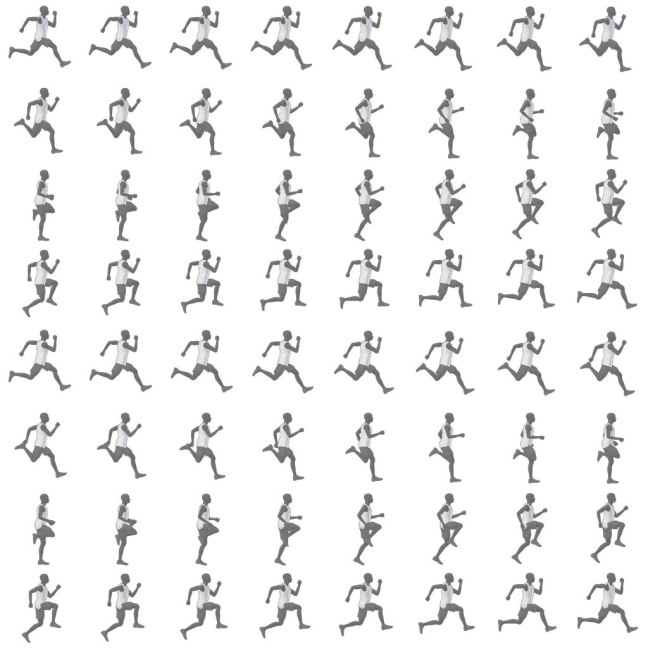
Creating a Sprite Sheet in Animate

Software:
Animate CC 18

To generate a Sprite Sheet (Texture Atlas) in Animate:

  1. Create a new project.
    * the type of the project doesn’t matter.
  2. Drag all your animation frames from into the Library window in Animate.
  3. Select all the frames in the Library window.
  4. RMB Click the selected frames and choose Generate Sprite Sheet.
  5. In the Generate Sprite Sheet window, set the Sprite Sheet settings, output path and press Export.

Untitled-1.jpg

Untitled-2

Untitled-3

Runner_Atlas

Creating a camera animation in UE4

Software:
Unreal Engine 4.18

  1. Create a Camera Actor:
    Cinematics > Cine Camera Actor
  2. Create a new Level Sequence:
    Right Click the Content Browser background and choose Animation > Level Sequence.
  3. In the Content Browser, Double Click the new Level Sequence to open it in the Sequencer.
  4. press ‘+ Track’ and choose Camera Cut Track.
  5. In the camera track press ‘+ Camera’ and choose the Camera Actor you created.
  6. press ‘+ Track’ and choose Transform.
  7. Move the Time-Slider to the motion start time, move the camera to its starting position and orientation, and press the little ‘+’ button at the right of the Transform track <- + -> to set the first Key-Frame for the camera movement.
  8. Move the Time-Slider to the motion end time, move the camera to its ending position and orientation, and press the little ‘+’ button at the right of the Transform track <- + -> to set the last keyframe for the camera movement.
  9. Repeat this to create more Key-Frames and develop the camera motion.
  10. Press the Clapperboard button to open the Render Movie Settings,
    Choose the file format, frame rate, resolution, and save location and press Capture Movie.

Untitled-0.jpgUntitled-1Untitled-2Untitled-3Untitled-4Untitled-5Untitled-6Untitled-7


Related:

  1. UE4 – Playing an Animated Level Sequence
  2. UE4 – Packaging a project for Windows
  3. UE4 – 3ds max & V-Ray Datasmith workflow


UE4 Sequencer – Scaling keys (stretching animation time)

Software:
Unreal Engine 4.25

  1. Right click the animation track (the space between the keys), and in Properties, unlock the Section range Start and Section Range End properties to make the section time finite so it can be scaled.
    * You can also set custom start and end time for the section.
    The Track (the green range) will now be finite, containing the keys.
  2. Ctrl + Drag the end of the track to scale it including the keys.

Scale_Keys


Related posts:

  1. UE4 – Creating and rendering camera animations
  2. UE4 – Creating and playing a Level Sequence


Deactivate Snap to Frames in 3ds max

Software:
3ds max 2017

  1. Click the Time Configuration button or right click the animation playback buttons to open the Time Configuration Window.
  2. In the Time Configuration window, set Time Display to FRAME:TICKS
  3. Right click the timeline and choose Configure > Snap To Frames to toggle the main timeline frame snapping.
  4. In the Dope Sheet editor, activate or deactivate the Snap To Frames button to toggle the Dope Sheet frame snapping.

Untitled-3

Untitled-2

Untitled-1.jpg

Rendering an animation in Maya and Arnold

Software:
Maya 2018 | Arnold 5

  1. Set a Project Folder or Image output path.
  2. In the Render Settings > Common tab, set the output file format, and in Metadata, set Frame/Animation ext. select an option that isn’t Single Frame.
    * This will make the Frame Range settings available.
  3. Set the Frame Range.
  4. Set the Maya UI to Rendering and choose Render > Render Sequence.

Untitled-1

Untitled-2

Render layers in Blender

Software:
Blender 2.78

I find that Render layers in Blender/Cycles render are a very useful tool for creating any kind of Render passes or AOV’s needed for compositing.
You can easily create render passes with different material overrides, or use the ability to exclude scene layers to create render passes with different light sources or different geometry.
For instance, there’s no built in World Position AOV in Blender but it’s really easy to create one using a Render layer with a World Position shader override (a world position shader can be created using an ‘Input > Geometry’ node)
Or in another case,
I thought you couldn’t have a decent AO render pass (using one scene file) because the AO shader doesn’t have a distance parameter and the Environment AO (that does have a distance parameter) produces a fake GI effect that I don’t want to have in the beauty-pass,
But using render layers it’s actually pretty easy to do because a render layer can be set to not use the environment or not use AO.
Bottom line, the Render layers feature in Blender gives you huge flexibility in creating custom output images or sequences out of a single scene in a single render job (not a single render because each render layer is rendered separately).
On top of all that the output images from all the render layers don’t have to be all packed into one gigantic EXR file,
You can use compositing operations and compositing ‘File Output’ node to determine exactly how the images will be stored in folders and files.
The ‘File Output’ node will actually create folders and store the files in them so output from one render command an be automatically stored within multiple folders.
In short.. AWESOME!!

Critical reminder:
When setting up render layers make sure you don’t forget to turn them all on when your done testing, otherwise you’l come back to the studio in the morning and find that not all the needed sequences have been rendered :-\
Blender_Render_layers